
(469) 436-6127

Are you struggling to get the vibrant, detailed prints you envision with DTF transfers? The secret often lies in proper dtf transfer file preparation. Incorrect file settings can lead to blurry images, washed-out colors, and ultimately, wasted materials. This comprehensive guide will walk you through each step, ensuring your artwork is perfectly optimized for stunning and durable DTF prints. Let's dive in!
Table of Contents
Before diving into the specifics of file preparation, it’s crucial to understand the Direct-to-Film (DTF) transfer process. DTF printing involves printing your design onto a special PET film, applying a powdered adhesive, and then heat-pressing the design onto your chosen fabric. Unlike other methods, DTF allows for full-color prints on a variety of materials, including cotton, polyester, and blends. This versatility makes it a popular choice for custom apparel and promotional items. DTF transfers from DTF Center are known for their durability and vibrant colors, making proper file preparation even more critical.
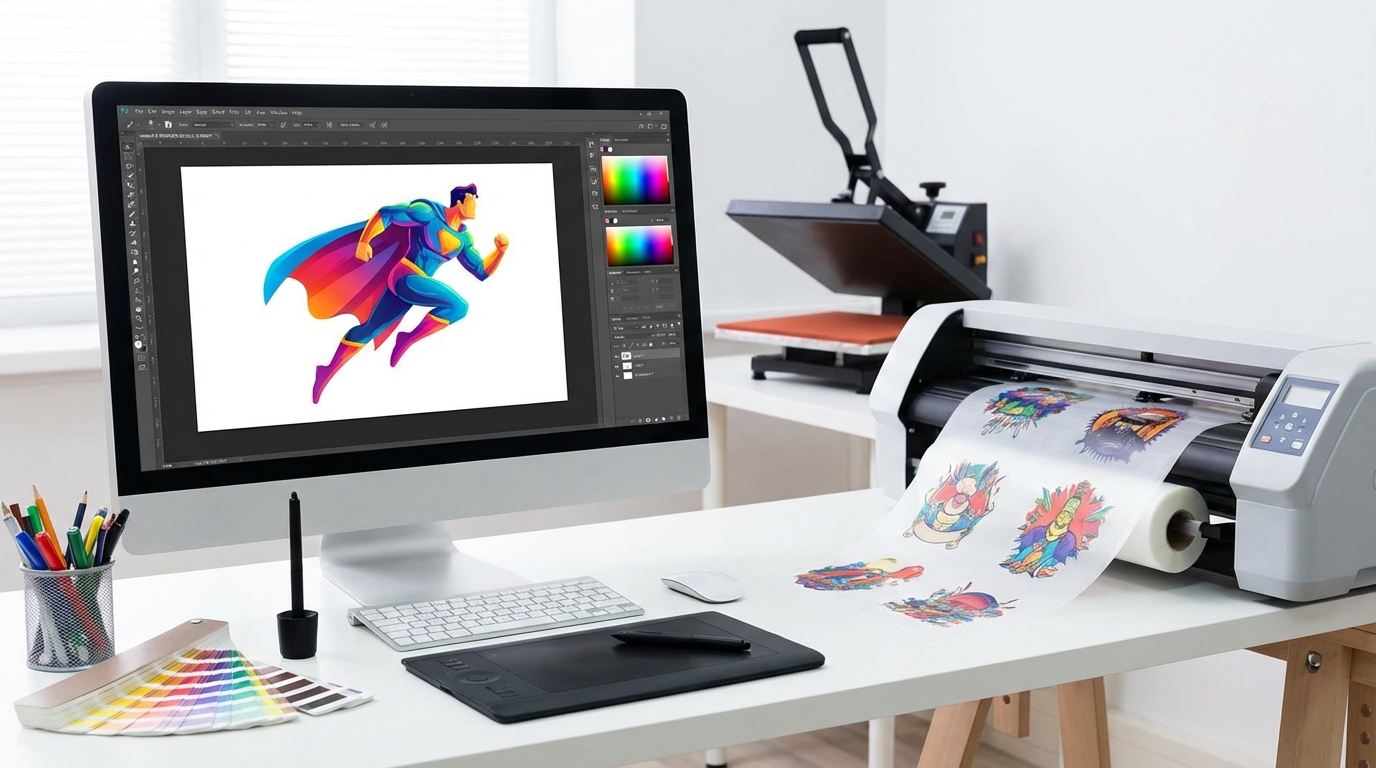
Resolution is a critical factor in dtf transfer file preparation. Low-resolution images will result in blurry and pixelated prints. Aim for a minimum resolution of 300 DPI (dots per inch) for optimal results. Higher resolutions are generally better, especially for intricate designs with fine details. When scaling images, always scale up within your design software to maintain quality. Avoid simply enlarging a low-resolution image, as this will only amplify the pixelation.
DPI (dots per inch) refers to the number of ink dots per inch printed on the physical transfer. PPI (pixels per inch) refers to the number of pixels per inch in the digital image. While often used interchangeably, DPI is more relevant to the printing process, while PPI is more relevant to digital image editing. Ensure your design software is set to 300 DPI when creating or exporting your files.
According to a study by Printing Industry Insights, prints with a resolution of 300 DPI or higher have a 40% better perceived quality than those printed at lower resolutions.
Color profiles define the range of colors that can be accurately reproduced in a printed image. Using the correct color profile is essential for achieving accurate and vibrant colors in your DTF transfers. The sRGB color profile is generally recommended for DTF printing, as it offers a wide color gamut and is widely supported by design software and printing equipment. However, always confirm the recommended color profile with your DTF printer or service provider, like DTF Center, as they may have specific requirements.
Incorrect color profiles can lead to color shifts and inconsistencies between your digital design and the final printed product. It's always best practice to calibrate your monitor to ensure accurate color representation during the design process. This helps to ensure that the colors you see on your screen closely match the colors that will be printed on the transfer film.
Understanding the difference between vector and raster graphics is crucial for dtf transfer file preparation. Vector graphics are composed of mathematical equations that define lines, curves, and shapes. They are infinitely scalable without losing quality, making them ideal for logos, text, and illustrations with clean lines. Raster graphics, on the other hand, are composed of pixels. When scaled up, raster images can become pixelated and blurry. Photographs and complex artwork are typically raster-based.
If possible, create your designs in vector format to ensure the highest possible quality. If you need to use raster images, make sure they are high-resolution (300 DPI or higher) and avoid scaling them up excessively.
Choosing the right file format is another important aspect of dtf transfer file preparation. The recommended file format for DTF transfers is typically PNG (Portable Network Graphics) with a transparent background. PNG supports lossless compression, which means it preserves image quality without losing data. Other acceptable file formats include TIFF (Tagged Image File Format) and PDF (Portable Document Format), but PNG is generally preferred due to its compatibility and transparency support. For vector graphics, SVG (Scalable Vector Graphics) is also a good option.
Avoid using lossy file formats like JPEG (Joint Photographic Experts Group), as they compress images by discarding data, which can result in a loss of quality. When saving your files, always use the highest quality settings to minimize compression artifacts.
Transparency is a key feature of DTF transfers, allowing you to print designs without a solid background. This is particularly useful for intricate designs with complex shapes and outlines. When preparing your files, ensure that the background is completely transparent. In most design software, you can achieve this by deleting the background layer or using a clipping mask. Save your file as a PNG to preserve the transparency. If you're using a vector graphic, ensure that there are no filled backgrounds behind your design.
Sometimes, remnants of the background can remain, even if you think you've removed them. This can result in unwanted white or colored areas around your design when printed. Always double-check your files to ensure complete transparency.
Before submitting your files for DTF printing, it's essential to proof them carefully. This involves checking for any errors, such as spelling mistakes, incorrect colors, or missing elements. Zoom in on your design to inspect the details and ensure that everything looks as it should. Consider printing a test print on paper to get a sense of the colors and overall appearance of your design. Many DTF printing services, including DTF Center, offer proofing services to help you catch any potential issues before printing the final product.
Mastering dtf transfer file preparation is the key to achieving professional-quality DTF prints. By following these steps, you can ensure that your artwork is perfectly optimized for vibrant colors, sharp details, and long-lasting durability. Remember to pay close attention to resolution, color profiles, file formats, and transparency. Take the time to proof your files carefully before submitting them for printing. With the right preparation, you can unlock the full potential of DTF transfers and create stunning custom apparel and promotional items. If you need high-quality DTF transfers with fast turnaround, DTF Center offers same-day shipping and local pickup options. Start preparing your files today and experience the difference!
The ideal resolution for DTF transfer files is 300 DPI (dots per inch) or higher. This ensures that your prints will be sharp and detailed, without any pixelation or blurring.
The recommended color profile for DTF printing is typically sRGB IEC61966-2.1. However, it's always best to confirm the specific requirements with your DTF printer or service provider.
The preferred file format for DTF transfers is PNG (Portable Network Graphics) with a transparent background. PNG supports lossless compression, which preserves image quality without losing data.
Open your image in a design software like Photoshop or Illustrator. Delete the background layer or use a clipping mask to remove the background. Save the file as a PNG to preserve the transparency.
About DTF Center:
DTF Center specializes in providing high-quality custom DTF transfers and UV DTF stickers with same-day shipping and local pickup options. We are dedicated to delivering durable, vibrant prints for apparel and promotional items, ensuring customer satisfaction with every order. Our commitment to quality and speed makes us a trusted partner for businesses and individuals alike.

Same-day DTF transfers, gang sheets and UV DTF stickers printed in Dallas, Texas and shipped nationwide. No minimums, no setup fees, over 80,000 inches printed daily.
